
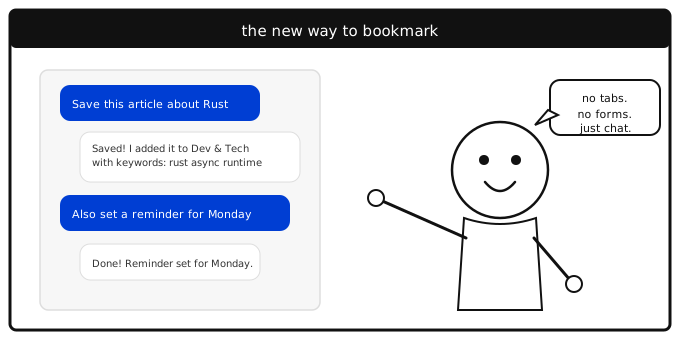
That's what prompt-based bookmark management looks like. LinkaGoGo connects to AI assistants like Claude, ChatGPT, and Cursor through the Model Context Protocol (MCP) — giving your AI direct access to your bookmark collection. You talk. It acts.
Save bookmarks without leaving your flow
You're deep in a coding session. You find a great article about Rust's async runtime. In the old world, you'd right-click, bookmark, pick a folder, maybe add tags. That's four context switches.
With MCP, you stay where you are:
> "Save https://tokio.rs/blog/async-runtime to my Rust folder with keywords async runtime concurrency"
Done. Title fetched automatically. Keywords added. Filed in the right folder. You never left your editor.
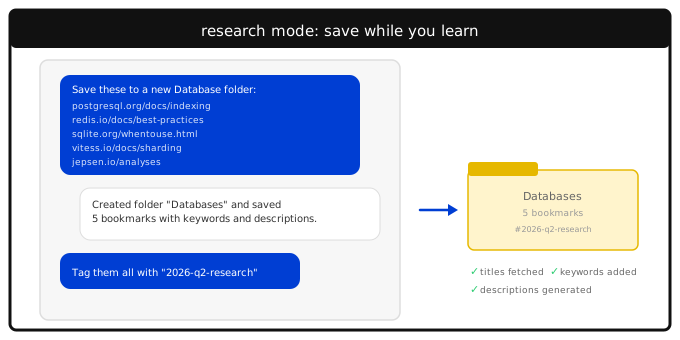
This is especially powerful during research sessions. You've been evaluating five database options and have the URLs ready. Instead of bookmarking each one individually:
> "Create a folder called Database Evaluation and save these five bookmarks. Tag them all with 2026-q2-research."
One prompt replaces fifteen minutes of manual filing.
Ask questions about your collection
Your bookmarks aren't just a list — they're a dataset. A record of everything you've found worth keeping over the years. Prompt-based management lets you query that dataset naturally:
- "How many bookmarks do I have about machine learning?"
- "What's my most visited bookmark this month?"
- "Show me bookmarks I added last week but never visited"
- "Do I have any dead links?"
- "What reminders are due today?"
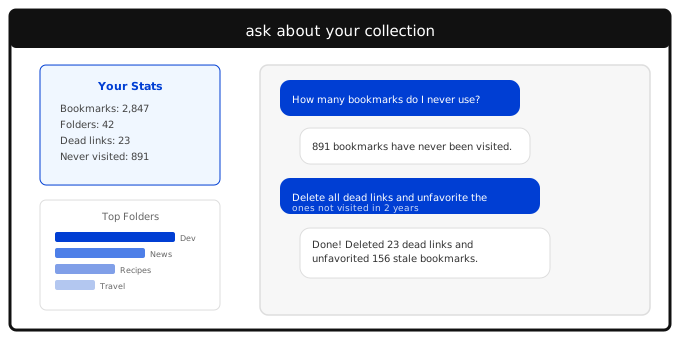
The get_stats tool gives you a bird's-eye view: total bookmarks, folder count, dead links, and more. But the real power is combining search with action.
Bulk cleanup in plain English
Every bookmark collection accumulates cruft. Dead links to pages that moved. Duplicates from different browsers. Bookmarks with titles like "Untitled" or "localhost:3000" that made sense at the time.
Cleaning this up manually is soul-crushing. With prompts, it's a conversation:
> "Find all my dead links"
The AI checks your collection and returns a list of broken URLs, redirects, and uncertain links.
> "Delete the dead ones and update the redirected ones to their new URLs"
Hundreds of bookmarks cleaned up in two sentences. Or go deeper:
> "Find bookmarks I haven't visited in over two years and remove them from favorites"
> "Tag all bookmarks in my News folder that don't have keywords yet with 'news untagged'"
Keywords that actually get written
Here's an honest truth about bookmark management: nobody writes keywords. You save the link, maybe pick a folder, and move on. The keywords field sits empty on 90% of bookmarks.
With AI enhancement, you can fix years of neglect in minutes:
> "Find bookmarks without keywords and suggest some based on their titles and URLs"
LinkaGoGo's batch AI Enhance does this at scale. Select a folder of bookmarks, click AI, and every bookmark gets a proper title, description, and keywords generated from its content. But through MCP, you can be even more specific:
> "Add the keyword 'reference' to all bookmarks in my Documentation folder"
> "Remove the tag 'old' from everything in Recipes"
The research workflow
Where prompt-based management really shines is research. When you're exploring a topic — evaluating tools, comparing approaches, building a reading list — bookmarks are your working memory.
A typical research session through MCP:
1. Start: "Create a folder called Kubernetes Migration" 2. Collect: "Save these five articles about K8s migration strategies to that folder" (paste URLs) 3. Annotate: "Add the keyword 'helm' to the ones about Helm charts" 4. Rate: "Give 5 stars to the official migration guide and the CNCF best practices doc" 5. Remind: "Set a weekly reminder on the migration checklist" 6. Review later: "What's in my Kubernetes Migration folder?"
No tabs to manage. No forms to fill. No UI to navigate. Just the research.
Export and share
Your collection isn't just for you. Need to share your cooking bookmarks with a friend? Send a reading list to a colleague?
> "Export my Recipes folder as an HTML bookmark file"
The AI calls LinkaGoGo's export and hands you a standard Netscape bookmark file that any browser can import. Or export as XBEL to preserve all the LinkaGoGo metadata — ratings, reminders, keywords, visit counts.
Setting it up
Connecting LinkaGoGo to your AI assistant takes about two minutes:
1. Generate an API key in Account > API Keys 2. Add the LinkaGoGo MCP server to your assistant's config 3. Start talking to your bookmarks
Full setup instructions for Claude Desktop, VS Code, Cursor, and other MCP-compatible clients are on the MCP setup page.
The shift
Traditional bookmark management is a chore you do separately from your actual work. You stop what you're doing, open the bookmark manager, click through folders, fill in fields, and go back to what you were doing. Most people don't bother, which is why most bookmark collections are a mess.
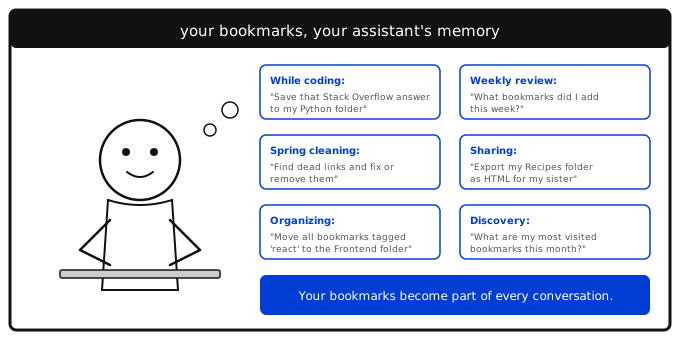
Prompt-based management dissolves that boundary. Your bookmarks become part of your conversation, your research flow, your coding session. You don't manage bookmarks — you just mention them, and they get managed.
The best organizational system is the one you actually use. And nothing is easier to use than your own words.
Set up MCP integration and start managing your bookmarks by talking to them. Plus and Premium plans include API access.