
Add a query after the alias, and it gets even more interesting.
Alias navigation: two letters, anywhere
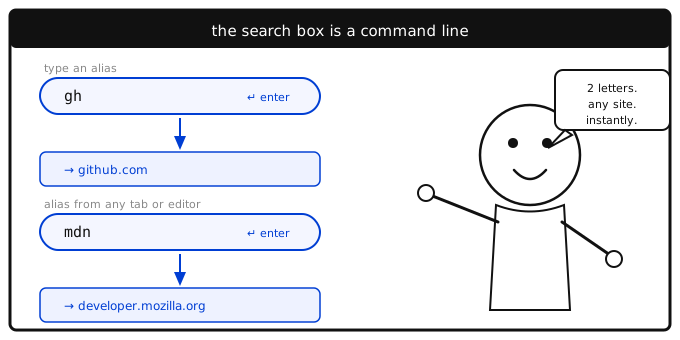
Every bookmark can have a short alias — a keyword you assign yourself. Type it in the search box and press Enter, and LinkaGoGo takes you straight to that URL.
Some examples worth setting up:
gh→ github.commdn→ developer.mozilla.orgtw→ your Twitter/X profilecal→ Google Calendarnotion→ your Notion workspace
Alias + query: instant smart search
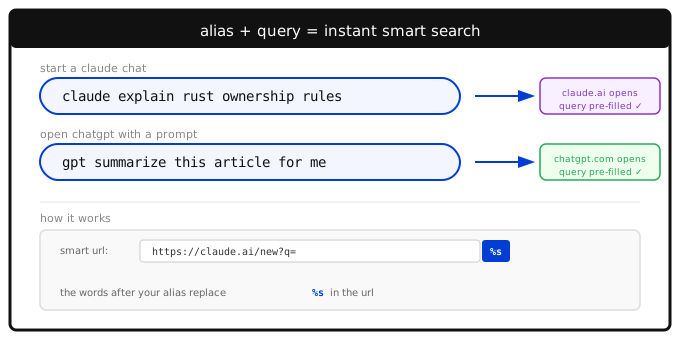
Set a Smart URL on a bookmark — a URL with %s as a placeholder — and now alias query opens that URL with your query substituted in.
This is most powerful for starting AI chats. Instead of opening a new tab, navigating to Claude or ChatGPT, and typing your question, you just type it directly in the search box:
> claude explain async/await in JavaScript
> gpt write a one-paragraph bio for my portfolio
The AI opens with your question already filled in.
How to set it up
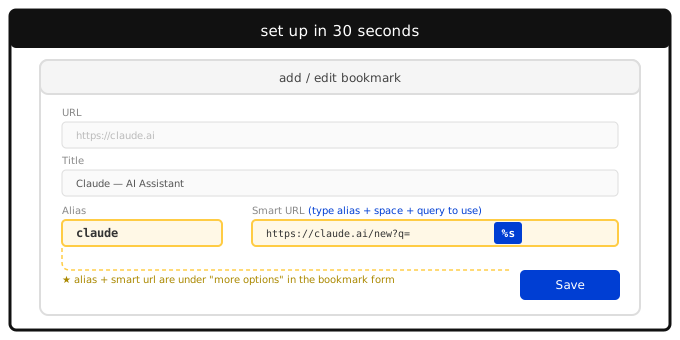
Open the bookmark form for any bookmark (or create a new one). Expand More Options to see the Alias and Smart URL fields:
- Alias: a short keyword, like
claudeorstock - Smart URL: the full URL with
%swhere the query goes
That's it. Save the bookmark and the alias is immediately active.
Aliases worth setting up today
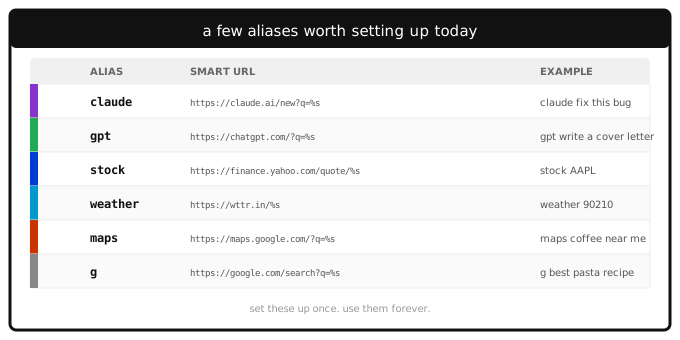
Here are six to get you started:
| Alias | Smart URL | What it does | |---|---|---| | claude | https://claude.ai/new?q=%s | Start a Claude chat | | gpt | https://chatgpt.com/?q=%s | Start a ChatGPT chat | | stock | https://finance.yahoo.com/quote/%s | Look up a stock: stock AAPL | | weather | https://wttr.in/%s | Forecast by zip: weather 90210 | | maps | https://maps.google.com/?q=%s | Navigate anywhere: maps coffee near me | | g | https://google.com/search?q=%s | Google search as a fallback |
The goal is to make the search box the one place you go for everything — your own bookmarks, any site you visit regularly, and any AI assistant you use. Set these up once and you'll use them every day.